

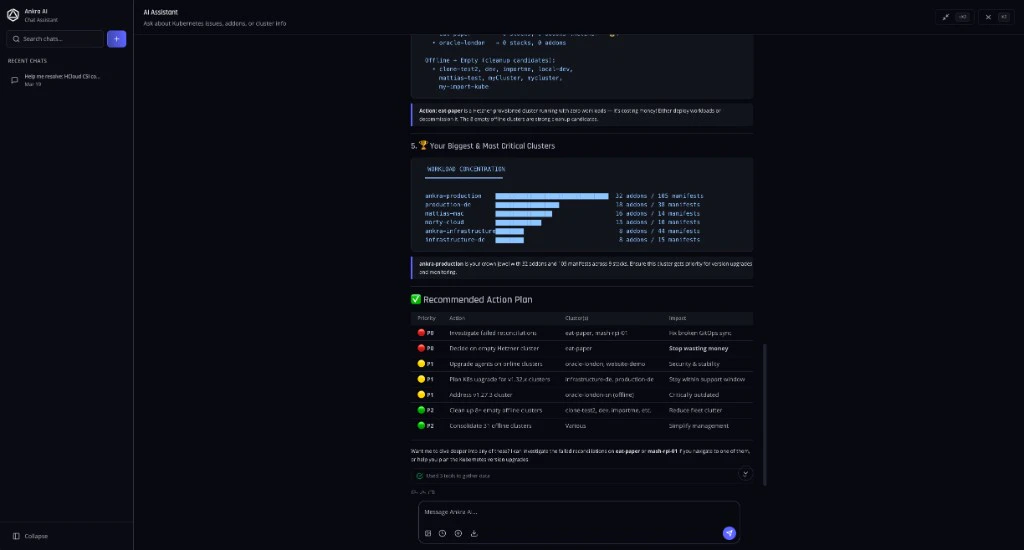
Open the assistant
Press⌘J (Mac) or Ctrl+J (Windows and Linux) from anywhere in Ankra. ⇧⌘J switches the chat to full screen, and ⇧⌘O starts a new chat. You can also click the chat icon in the bottom-right corner of a cluster page, or search for “AI Chat” in the Command Palette (⌘K).
The assistant starts from what you are looking at, so you do not need to name the resource:
Beyond the current page, it can read pod logs, the manifests actually deployed, which Stacks deployed what and with which values, resource states and events, and the AGENTS.md notes your team keeps per add-on and manifest. Where AI Insights has flagged a resource, its banner offers Ask AI to open the chat with that finding loaded.
Watch the assistant build and troubleshoot a Stack:
Ask, Agent, or Plan
The chat’s mode decides how far the assistant may go. Pick it in the chat input, or under the chat’s AI settings → Interaction mode. It is your own preference, and it applies to your conversations only.
Because clusters change underneath you, Ankra re-checks the live state when you confirm. If the cluster drifted from what the action or plan was based on, the confirmation is blocked so you review the change again rather than apply something stale.
For everything else that bounds the AI - connection modes, agents, alert remediation, and the emergency stops - see What it can change without asking.
Actions awaiting confirmation, plans awaiting approval, and sessions waiting on your input all surface in your Activity & Inbox, so long-running work does not get lost when you navigate away.
Autonomy: Manual or Auto
In Agent mode, your AI settings → Autonomy preference decides whether writes stop for you:- Manual (the default) - every write stops at a confirmation card.
- Auto - low-risk, reversible writes run immediately and land in the conversation as a receipt instead of a card. That includes a Stack deploy whose validated change set removes nothing, executed with its full bill of materials attached to the receipt.
kube-system are refused outright. Every auto-approved action is recorded in the audit log with its autonomy attribution.
This setting is separate from the organisation-wide AI Autonomy controls, and from the Auto entry in the model picker, which only routes between models.
Skills and tools
The assistant draws on skills - reusable instructions for specific tasks, such as packaging an add-on or generating a CI/CD pipeline. Organisation skills take precedence over Ankra’s built-in ones; see AI Skills and Custom Tools. Its tools are the same ones the MCP server exposes, under the same permission checks; the full list is in the MCP Tool Reference. Chat from Slack, Microsoft Teams or pull request comments uses the same tools too, and each of those connections can be capped further with its own AI mode - see AI Connections.Example prompts
Start from the symptom. The assistant checks pod logs for errors and timeouts, looks at which Stacks were deployed recently and what values changed, reads the state and events of the resources involved, and ties them together into a root cause with the evidence it found.Incident response
Incident response
- “Why is this pod failing?”
- “Users are reporting slow API responses. What changed in the last hour?”
- “The API is returning 500 errors. Was anything deployed recently that could cause this?”
- “Compare the current ingress configuration to what was running yesterday”
- “Which upstream service is causing the 503 errors?”
- “The deployment rollout is stuck - what’s blocking it?”
Add-ons and Stacks
Add-ons and Stacks
- “Why did cert-manager fail to install?”
- “I need a production-ready ingress with TLS” - it proposes the components (for example cert-manager and Traefik), their order, and starting values.
- “My monitoring stack is using too much memory” - it reads the deployed Helm values and suggests changes such as retention windows and resource limits.
- “Clone this Stack for staging but with smaller resource requests”
Configuration
Configuration
- “Is my resource limit configuration right for this workload?”
- “Why is this HPA not scaling?”
- “Explain the network policies affecting this service”
- “What secrets does this deployment need?”
Cluster health
Cluster health
- “Are all pods healthy?”
- “How many namespaces are in this cluster?”
- “Which nodes are under memory pressure?”
kubectl command, so the change is versioned in your GitOps repository.
Common failure patterns
For a failing add-on it also reads the Helm release state, the add-on’s configuration values, the latest install or update job, and missing CRDs.
History, models and feedback
Conversations are saved and can be resumed - open them from the history icon in the chat header or search “Chat History” in the Command Palette. The model picker switches between the Expert, Think and Quick tiers, trading speed for depth; Auto picks one per question. Rate any answer with the thumbs buttons - see AI Memory and Feedback. What each tier runs on is described in Models and Cost.What happens to your data
- Which provider receives it. Your question, the conversation, and what the assistant reads from your cluster (logs, events, manifests) are sent to the model that answers. On Ankra’s default models that is Ankra’s managed access: the Expert and Think models through OpenRouter, and Claude models through Anthropic. With your own provider key, calls your key can serve go to your provider on your account; anything it cannot serve runs on Ankra’s default access, and the Models settings page names which models those are.
- Exceptions with your own endpoint. Summarising a long conversation’s earlier history runs on Ankra’s platform access to Anthropic whatever provider you use. If a self-hosted endpoint fails mid-turn, the turn continues on the Ankra default with a notice, unless an admin sets the endpoint failure policy to Fail the turn.
- Secrets are withheld. Kubernetes Secret values never reach the model - only their key names. Tool results, your questions and the conversation history also pass through a secret detector that replaces anything that looks like a password, token or key with a redaction marker.
- Where it is kept. Conversations are stored against your account in your organisation. You can delete a conversation from your chat history, or with
ankra chat delete.